
Website migration to a new web hosting service may seem complicated, but with the right instructions it is easy. In this guide, we walk through all the steps you need to move your website to SpeedZone web hosting without downtime or data loss.
Website Migration to a New Web Host – Setup & Transfer
Moving your website to SpeedZone web hosting is straightforward. Our customer support team and technicians will help you migrate your website and emails easily to our new web hosting service.
* More time-consuming tasks involving custom applications etc. are charged separately. You can view the technician’s hourly rate here; billing is done in 30-minute intervals.
If your website is more complex than a standard site, please contact us at tuki@speedzone.fi and we will send you an accurate quote after analyzing your site.
If you want to migrate the services yourself, the entire process can be divided into five separate steps. To avoid the process becoming too complex, we recommend completing each step one at a time and moving to the next only once the previous one is complete. This ensures the safest way to avoid data loss and unplanned service interruptions.
Summary
Here is a very brief summary of the entire process. Each step is described in more detail at the end of the article.
During a proper service migration, no website or email account data will be lost, and the downtime caused by domain redirection can be scheduled for a time that suits you best.
A service interruption of approximately 1-2 hours occurs during nameserver changes.
Transferring Your Website – 5 Steps
1. Choosing and Ordering a Web Hosting Package
The first step in website migration to a new web hosting service is choosing a suitable web hosting package for your website and email. You can browse available packages here.
You can always upgrade your package later, so at this stage the choice should be made based on the package descriptions:
- Entry – Perfect for small projects and beginners taking their first steps in building an online presence. Supported by the most popular CMS platforms, including a top-tier email service.
- Basic – Ideal if you don’t need a large website but want one that integrates seamlessly with popular CMS platforms. You can also send professional emails directly from your own address using any email client. Suitable for small online stores. An excellent choice for simple WordPress, Drupal or Joomla!-based websites.
- Business – Get access to a high-quality email service and website space. Create an inviting, modern front page that welcomes visitors. Install all the most common CMS platforms easily with just one click.
- Pro – ncludes everything you need with enough power to keep your business running smoothly in all situations. Ideal for large, high-traffic online stores such as Magento or WordPress WooCommerce solutions when you also need plenty of storage for email accounts.
- For resource-intensive and business-critical services, we offer CloudServer (VPS) or Managed CloudServer solutions. If you need help choosing the right package, contact our customer service, describe your needs as accurately as possible, and we will find the most suitable package for you.
Once you have selected the appropriate package, click on “Get started!”. On the next page choose “I already have a domain, I only need web hosting”.
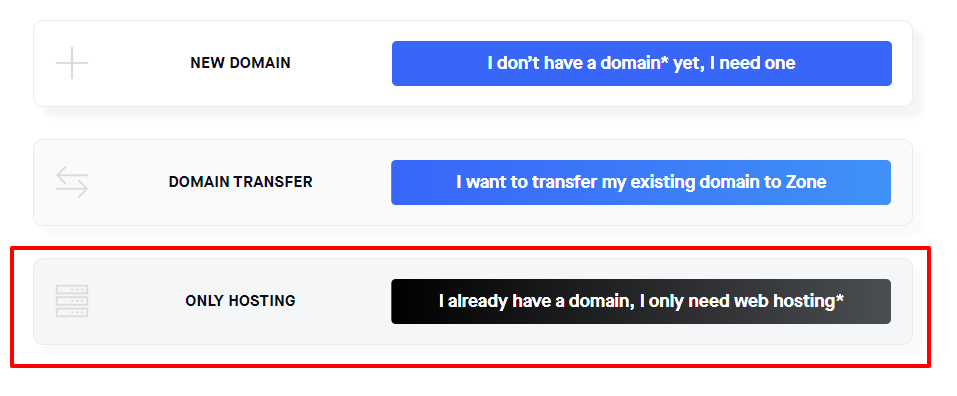
This selection ensures that your current website continues to function normally throughout the process.
We typically open the web hosting account automatically within 30-60 minutes. If any questions arise during order processing, we will contact you.
Upon successful completion of the order, an automatic notification will be sent to the contact email address associated with your SpeedZone user account.
2. Website Transfer and Setup
After opening the web hosting account, the next step in website migration to a new web hosting service is transferring the website files and database, and configuring the site to run on SpeedZone’s server.
Once the web-hosting service has been opened, the next step is to migrate the website files and database, and then set up the entire website on SpeedZone web-hosting.
f you use cron jobs, Redis, or other similar services with another provider, these must also be configured in SpeedZone’s hosting management.
There are two options for website transfer:
Option 1: We Handle the Website Transfer for You
f you have a simple presentation website built with WordPress, Drupal, Joomla! or another commonly used CMS, send us a message with your website address and your current provider’s FTP server login details, and if possible, the CMS admin panel credentials.
Our customer support can transfer most simple, modern websites in under half an hour — so the entire website migration is free of charge for you! Moreover, the result is fast and efficient because we are very familiar with our system and can anticipate various migration details in advance.
Additionally, we can integrate almost all popular content management software with the Zone+ application manager, which takes care of automatic updates and helps you better manage the application in the future.
Option 2: Transfer the Website Yourself or with a Web Developer
Transferring a website requires basic knowledge of websites, FTP, and databases. The migration steps are briefly described below, assuming the website uses a MySQL/MariaDB database:
- Download the files from your current service provider’s server and transfer them to the SpeedZone. Data can be uploaded in two ways:
- Using an FTP account, which you can create through server management from the “FTP” -> “User Accounts” menu.
- Using SSH access, which you can create access to via key pair from the “SSH” menu.
- Export the database from your current service provider as an .SQL file.
- Add a database user and database to the SpeedZone web-hosting. You can do this from the “Databases” -> “MySQL/MariaDB” menu.
- Upload the previously exported database file to the created MySQL/MariaDB database. This can also be done in two ways:
- Using phpMyAdmin at the address https://pma.hel01.zone.eu/. You can log in there with the previously created database user.
- Through SSH access.
- Connect the database to the web server using the website’s configuration file. You can find the hostname of your database server in the server management menu under “System information”. The database hostname is in the format dxxxxx.mysql.zonevs.eu.
- Check that the correct root directory path is used in both the database and files. You can find your server file’s path in the web-hosting management menu under “System information”. The directory path is typically in the format: /dataxx/virtxxxxx/domains/www.yourdomain.com/htdocs
3. Email Account and Content Migration
First, create all the email accounts in SpeedZone that are in use with your old provider and that you intend to transfer. Email accounts can be created in the web hosting management under E-mail → Mailboxes. When creating accounts, you need to set the account name, size limit, and password.
Once the accounts are created, a physical mailbox is created to which emails and folders can be transferred. You can test the account’s functionality by logging in at https://auth.webmail.zone.fi/en already at this stage.
There are two options for migrating mailbox content:
Option 1: We Migrate the Mailbox Content for You
Our customer support can use a tool to automatically migrate mailbox contents without anyone seeing the content. To move emails to the SpeedZone web-hosting, we require the names of the email accounts, passwords, and the incoming mail server address used with the old service provider.
SpeedZone employees do not have access to mailbox content during the migration.
Moving the content of 5-10 mailboxes to the SpeedZone web-hosting is usually free of charge. For a more precise offer, customer support can provide it once the sizes and number of accounts are known.
Option 2: Transfer Mailbox Content Yourself
Users can also transfer their email accounts themselves. The easiest way is to use the IMAP protocol and an email client (such as Outlook, Thunderbird, etc.). The prerequisite is that the email account with the old service provider is already set up in the same application. Here are the detailed steps:
- Add the new email account created in SpeedZone to your email application using IMAP.
- Drag and drop emails from the folders of the old service provider’s account to the new account, one by one.It is recommended to ensure you have a backup copy of your emails before migrating! If emails are lost during the migration process, we cannot recover them from anywhere.
Step 4: Domain Transfer (Optional)
Domain transfer to SpeedZone is optional because it is not directly necessary for using the website and/or email on SpeedZone web-hosting.
However, keeping the domain and server under the same service provider significantly simplifies the management of services in the future.
To transfer the domain, you need to request the EPP authorization code from your current service provider, and for some domain extensions, you may also need to unlock the domain name (this is necessary, for example, with generic domains like .COM, .NET, .ORG, etc.).
Once you have obtained the authorization code, you can start the migration process from here.
Step 5: Domain DNS Redirection to Web Hosting Service
Once you have transferred the data from the old service provider to SpeedZone and ensured that the new website is working correctly on our webhosting, you need to proceed with domain redirection.
All Services Hosted at SpeedZone
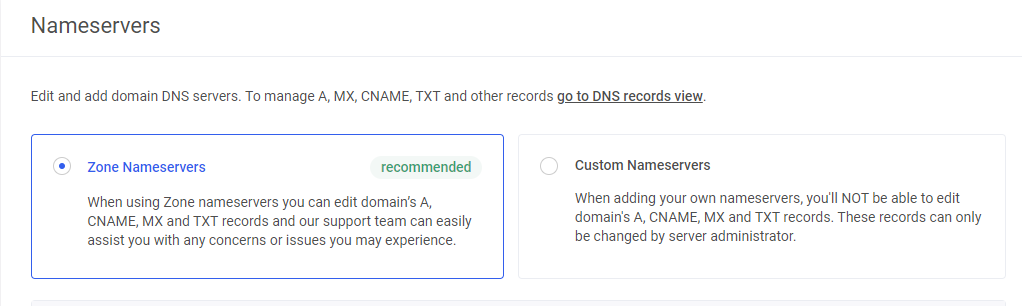
If your website, email, and domain name are all moved to SpeedZone, then to redirect the domain, you need to change the nameserver records from the domain management.
For this select “Domains”, then choose the domain name and then choose “DNS Servers”.
n the following window, click on the option “Zone Nameservers” and then “Confirm Zone Nameservers”
Website and/or Email at SpeedZone – Nameservers and/or Domain Elsewhere
If you have a domain name whose registration service is not provided by SpeedZone or for any other reason you do not wish to transfer the domain, you can direct the domain’s nameservers directly to SpeedZone.
To do this, redirect or have your domain registrar replace the nameservers with those of SpeedZone, which are as follows:
ns.zone.eu (217.146.66.65)
ns2.zone.ee (85.234.242.32)
ns3.zonedata.net (90.191.225.242)
The website and/or email are hosted with SpeedZone. The nameservers and/or domain are hosted elsewhere
If you are using nameservers from another service provider, you can redirect all services separately to SpeedZone using DNS records.
Website Redirection
To redirect the website, you need to change the domain’s A record at the nameserver manager to the IP address of the SpeedZone web-hosting. You can find the correct IP address in the webhosting management menu under “System information”.
Email Redirection
To redirect e-mail to the SpeedZone webhosting, you need to assign the following MX record to the domain in your nameserver manager:
zonemx.eu priority 10